How to Display a Cinematic Timeline Video at a Party: Projectors, QR Codes, and Loops
Quick answer
To successfully display a cinematic timeline video at a party, you need a high-lumen projector for ambient light, a dedicated media player for…
By LifeStory AI Editorial · ·
In this guide (10 sections)
seamless looping, and strategic QR code (then help guests share the file in HD) placement for guest sharing. LifeStory AI makes generating these emotional evolution videos effortless, leaving you more time to perfect your venue's audiovisual setup.
A beautiful video can still fail in a loud room. Guests arrive mid-conversation, ambient light washes out a cheap projector, and someone trips over a laptop cable five minutes before toasts. Display is not a side detail. It is part of the story.
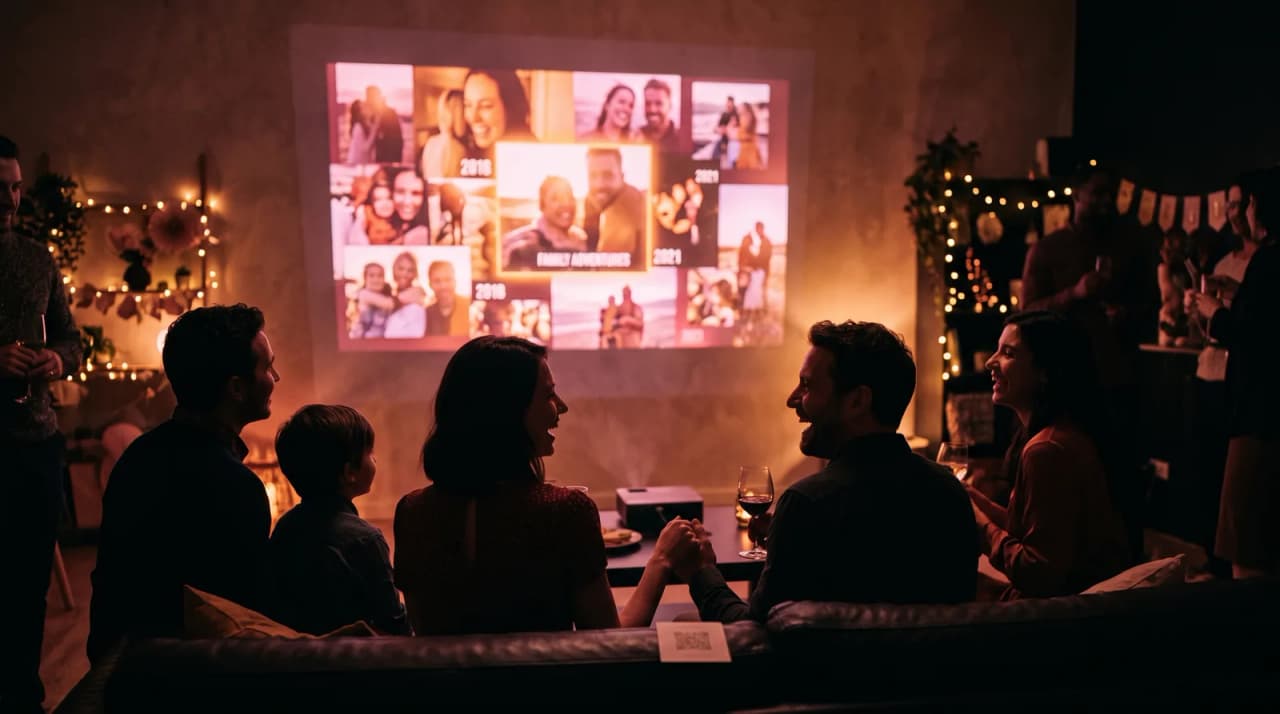
Imagine a reunion cocktail hour where one quiet wall runs a looping family timeline, table cards hold QR codes, and the DJ never has to compete with a soundtrack. Guests drift over, watch thirty seconds, scan the code, and keep the memory on their phones without stopping the party.
What tends to work for event video display?
Our recommendation: treat display as three jobs - one noticeable screen, silent looping for ambient hours, and QR codes so guests can take the file home - plus one optional featured play during a toast when you want full-room attention. Missing any corner means the video gets ignored, trapped at the venue, or lost after the night ends.
What equipment do you need to project a video at a party?
Match hardware to the room you actually booked. A living-room projector will struggle in a bright banquet hall with windows. Look for roughly 3,000 to 4,000 lumens when ambient light is hard to control.
Sources: Library of Congress digital photo preservation basics (opens in new tab).
Pair the projector with a dedicated media player or a clean laptop that will not receive chat notifications mid-loop. Download the file. Do not stream it from a fragile venue Wi-Fi connection.
What is the Screen-Loop-Share Triangle?
Treat event display as three jobs that support each other:
- Screen - one primary surface guests can notice without being forced to sit.
- Loop - continuous playback so late arrivals still catch the arc.
- Share - a QR path so people can rewatch later in HD.
If any corner is missing, the video either gets ignored, missed, or trapped in the venue. This same triangle works for multi-generational reunion kickoffs and quieter company milestones alike.
How should you map the room before guests arrive?
| Zone | Setup | Guest experience |
|---|---|---|
| Arrival wall | Projector or TV at eye level | First visual cue as people enter |
| Soft seating | Lower volume or silent loop | People watch without blocking traffic |
| Table cards | Printed QR codes | Private rewatch and save-for-later |
| Toast moment | Optional one-time featured play | Full-room attention when you want a peak |
We generally recommend one featured play during a toast and silent looping the rest of the night. Competing soundtracks fatigue a room faster than a quiet visual wall.
Screen-Loop-Share Triangle at a glance
Main screen loop
   ↓
Toast reveal
   ↓
Private share file
How do you set a video to loop without looking amateur?
Use VLC, QuickTime, or another local player with an explicit repeat setting. Test the cut from the final frame back to the first frame before doors open. Hide the cursor, disable sleep, and turn off notification banners.
If you generated the file with LifeStory AI, keep the local MP4 on the playback device so the loop does not depend on a browser tab. That one habit prevents most mid-event freezes.
How can QR codes help guests take the video home?
Not everyone will stand through a full loop. Place scannable codes near the screen, on tables, or at the bar. Link each code to a private folder or share page with the HD file so guests can save and reshare cleanly later.
Print codes on cardstock that matches the event design. A taped phone screenshot on a wall reads as an afterthought.
What is the best way to handle audio in a crowded venue?
If the video is ambient decor, run it silent. Let the DJ or conversation own the room. If you want a dedicated screening, pause other music and route the video audio into the venue PA for that one moment only.
Always sound-check an hour early. Volume that feels fine in an empty hall can disappear once guests arrive.
How do you create the video before you fight with cables?
Generate the story first so AV testing is about display, not content panic. Upload a short chronological set of photos to LifeStory AI, download the MP4, and only then lock projector placement. This order also helps for founder or company anniversary screens, where the room expects polish under time pressure.
Choose a strong still for any holding slide or invite thumbnail using the same care you would for a cover photo that has to read at a glance.
Cross-method note: The Screen-Loop-Share Triangle handles logistics; the Temporal Shock Lens explains why the seated reveal beat must stay short and face-forward.
What have we noticed?
We've noticed event loops longer than three minutes during cocktail hour lose guests — loop a ninety-second highlight, save the full cut for the seated reveal.
Our editorial take
Our editorial take: background autoplay with sound on is almost always a mistake in mixed-age rooms. Loop silent, reveal loud once.
A surprisingly specific detail
Bring a USB-C to HDMI adapter even when the venue promises wireless casting — one cable saves more parties than any rehearsal.
What mistakes do we see over and over?
- Streaming from the cloud on venue Wi-Fi - one weak signal ends the loop.
- Underpowered projectors in bright rooms - the image becomes a pale suggestion.
- Playing soundtrack over a DJ set - audio conflict makes both feel cheaper.
- Hiding the only screen behind a buffet line - traffic blocks the story.
- No QR path home - guests remember the feeling and lose the file.
- Skipping a full rehearsal with final lighting - daytime tests lie.
Before guests arrive: event display checklist
- Generate and download the LifeStory AI video as a local MP4
- Confirm projector lumens against actual room light
- Set loop mode, hide cursor, disable sleep and notifications
- Place QR codes in at least two guest zones
- Decide silent-loop vs featured-toast playback
- Run one full start-to-loop test on the real hardware
Frequently asked questions
Should the video loop with sound all night?
Usually no. Silent looping during cocktails and dinner keeps the DJ or conversation in charge; save soundtracked playback for one featured screening if you want a peak moment.
How bright should the projector be?
Roughly 3,000 to 4,000 lumens helps in rooms with windows or overhead lights. Test with guests in the room, not an empty hall.
Do guests need Wi-Fi to get the file?
They should not. QR codes should link to a file you control - not a stream that dies when venue Wi-Fi drops.
When should we generate the video relative to AV setup?
Create and download the MP4 first, then fight cables and placement. Content panic and hardware panic should not happen in the same hour.
A timeline video earns its place at an event when people can notice it, return to it, and take it home. Get the triangle right, and the tech disappears into the memory.
More in this topic
How to Kick Off a Multi-Generational Family Reunion With an Ancestral Evolution Video
An ancestral evolution video instantly bridges the gap between generations by visually morphing your family history from old [black-and-white…
How to Share High-Definition Evolution Videos on WhatsApp and Instagram
To share your LifeStory AI evolution video without losing quality, download the high-definition file directly to your device.
How to Showcase a Founder's Journey Using AI Photo Evolution
Founders can now turn a handful of early garage photos and recent team shots into a cinematic evolution video to celebrate funding rounds or company…